Key takeaways:
- The Facebook page URL is a link to your Facebook page that is visible to everyone and represents your Facebook page domain.
- You can easily change it via settings without changing your Facebook page name, you can add some taste and humour to showcase your brand’s self-identity.
- Keep your Facebook page URL short and memorable, but distinct so that it would not be easily conflated with other similar URLs that lead to different pages.
Your Facebook presence starts with a link. Your Facebook page URL is your profile address that can be used to access the public display of your account and the content you share, and it’s also a part of your digital identity and can be an indicator of your views, humour, or self-reflection.
Whether you’re running a business page, growing your creator presence, or simply tidying up your profile, knowing how to change Facebook Page URL is a must-have skill in 2025.
Let’s break it down step-by-step – both for desktop and the Facebook mobile app.
What Is a Facebook Page URL?
Understanding Facebook Page URLs and Usernames
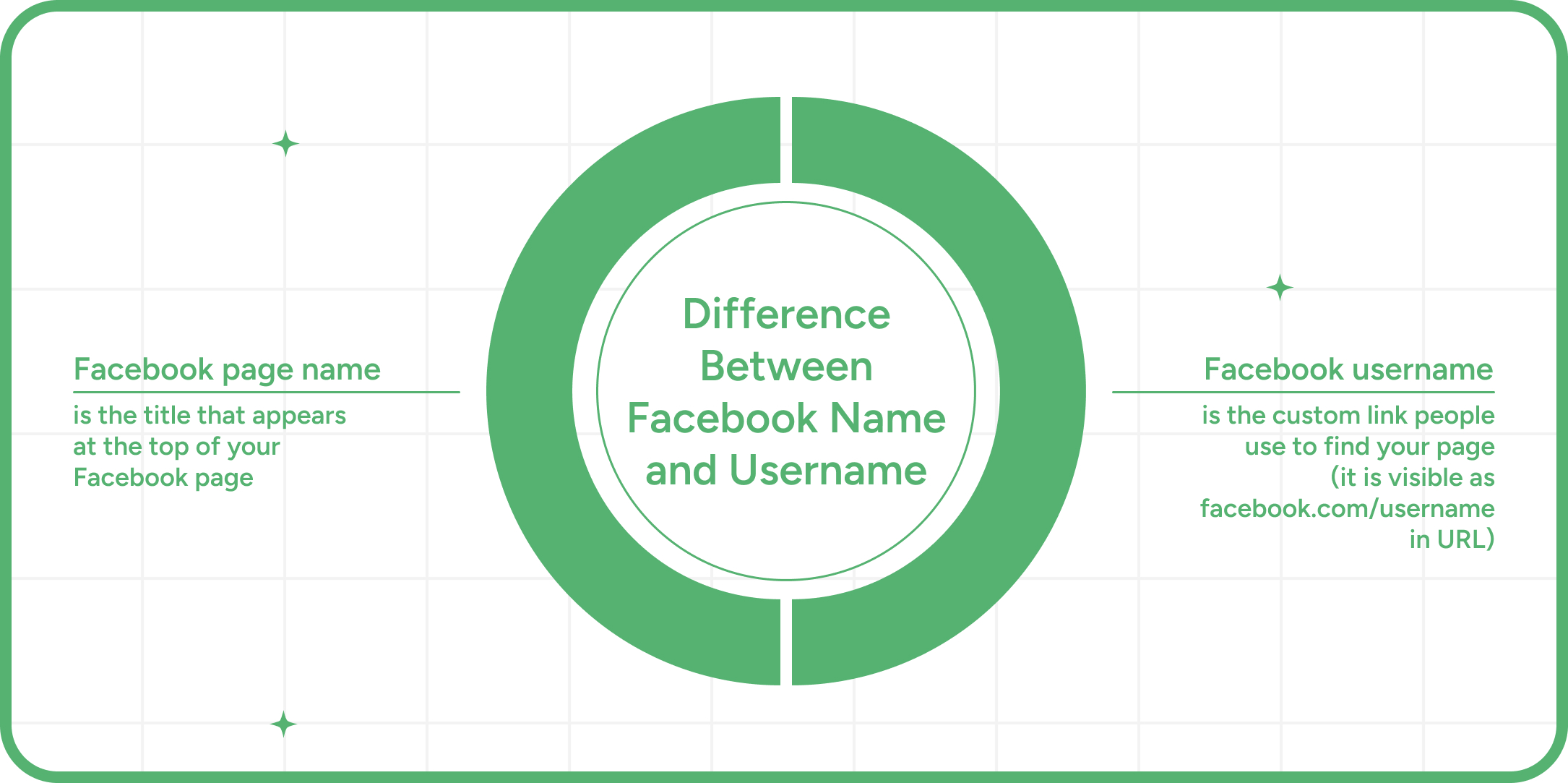
Your Facebook Page URL is the web address people use to access your page (e.g., facebook.com/YourBrand). It’s tied to your page’s username, also known as your Facebook handle.
For example, if your page’s username is "@MySneakerStore", your Facebook URL becomes facebook.com/MySneakerStore.
Importance of a Custom URL for Branding
A custom Facebook URL makes it easier for customers to find and remember you. It boosts credibility and looks more professional on marketing materials, business cards, or in your email signature.
Good: facebook.com/BadExperienceHome
Not-so-good: facebook.com/pages/12345678909
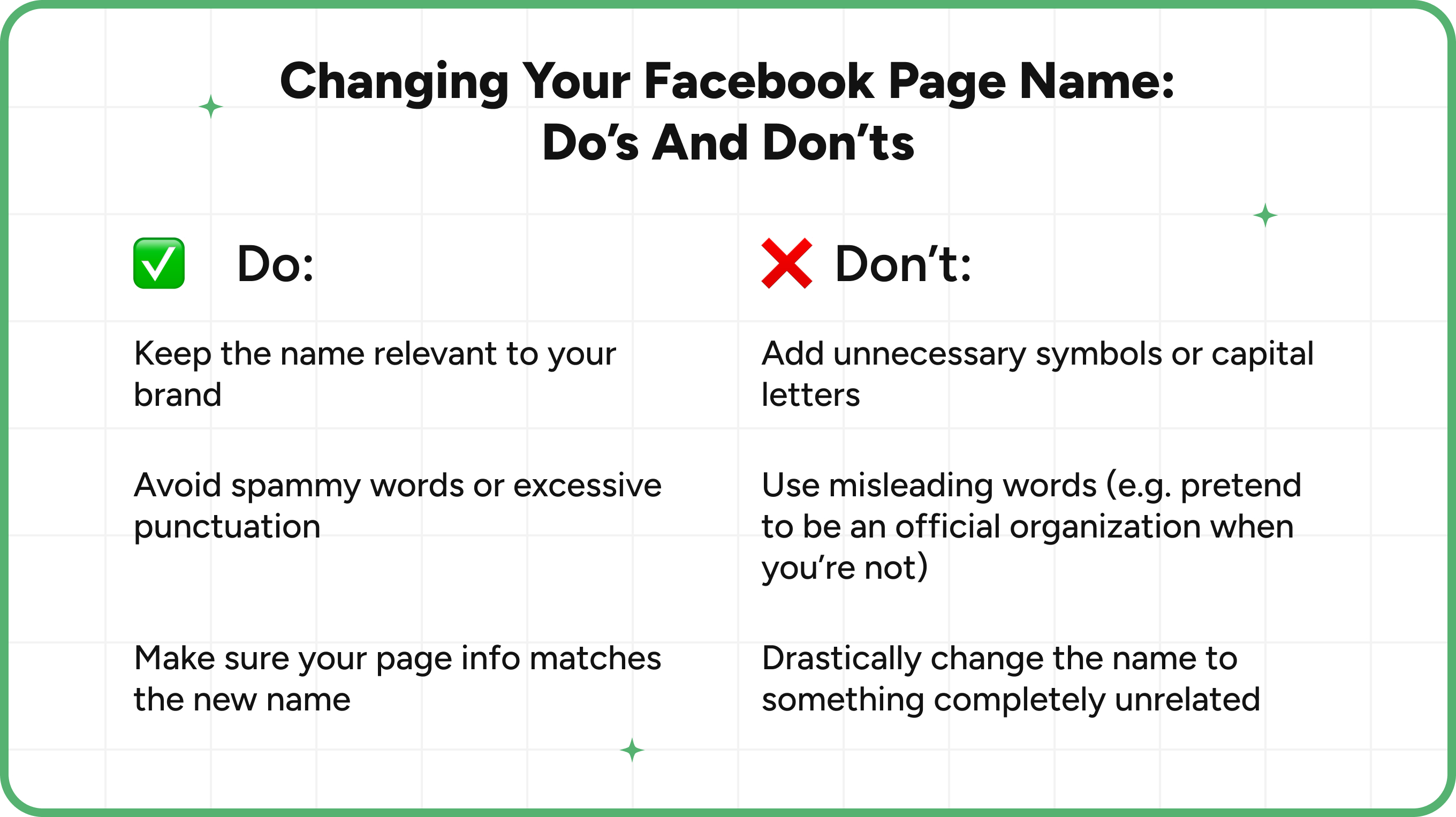
Therefore, you should never use a random URL just to have a new username, instead, you must think through before choosing the right page’s username that will make a good impression on the visitor and will be easy to remember.
Personal Page URL vs Business Page URL
A personal profile has its own Facebook URL, usually based on your name. A business page has a separate URL and is managed via your personal account.
Whether you’re tweaking a business page or a creator on a personal profile, the method to update the page’s username is nearly identical.
Steps to Change Facebook Page URL on Desktop
Updating your Facebook Page URL from a desktop is quick and intuitive if you know where to look.
1: Access Your Facebook Page Settings
- Log in to your personal account that manages the business page.
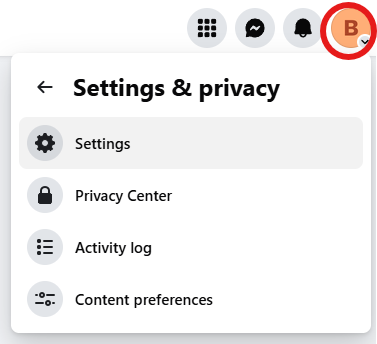
- Go to the page you want to update via your profile picture on the top right side of your screen.
- Click Settings & Privacy in the right menu bar after clicking your profile picture again, and then click Settings.
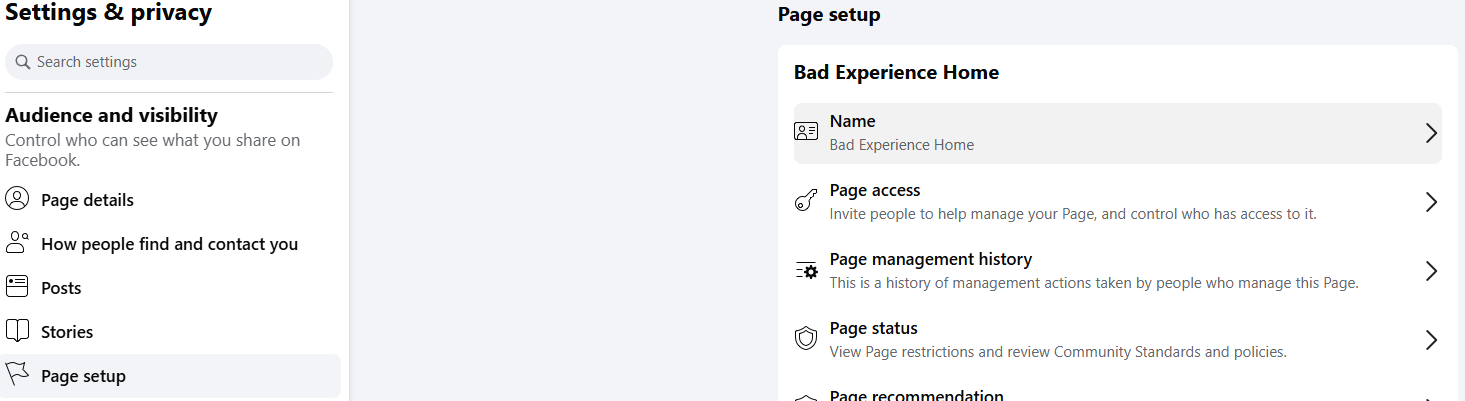
2: Navigate to Page Setup
- In the Audience and Visibility, select Page Setup.
- In Page Setup, click the option Name.
3: Edit Your Username
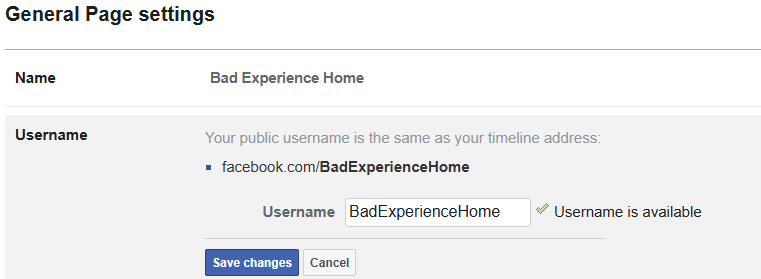
- Click the current username or just Username if you didn’t have a custom username before.
- Type your new username (this will become your new Facebook URL).
- It must be unique, 5+ characters, and contain only letters, numbers, and periods.
4: Confirm and Save Changes
- If the new username is available, Facebook will let you confirm.
- Click Save Changes – you’re done.
- Your Facebook URL will instantly update to reflect the new username.
Steps to Change Facebook Page URL on Mobile
Using the Facebook mobile app? No worries. Here’s how to get it done:
1: Access Your Facebook Page Settings
- Open the Facebook mobile app (not the Facebook Messenger app).
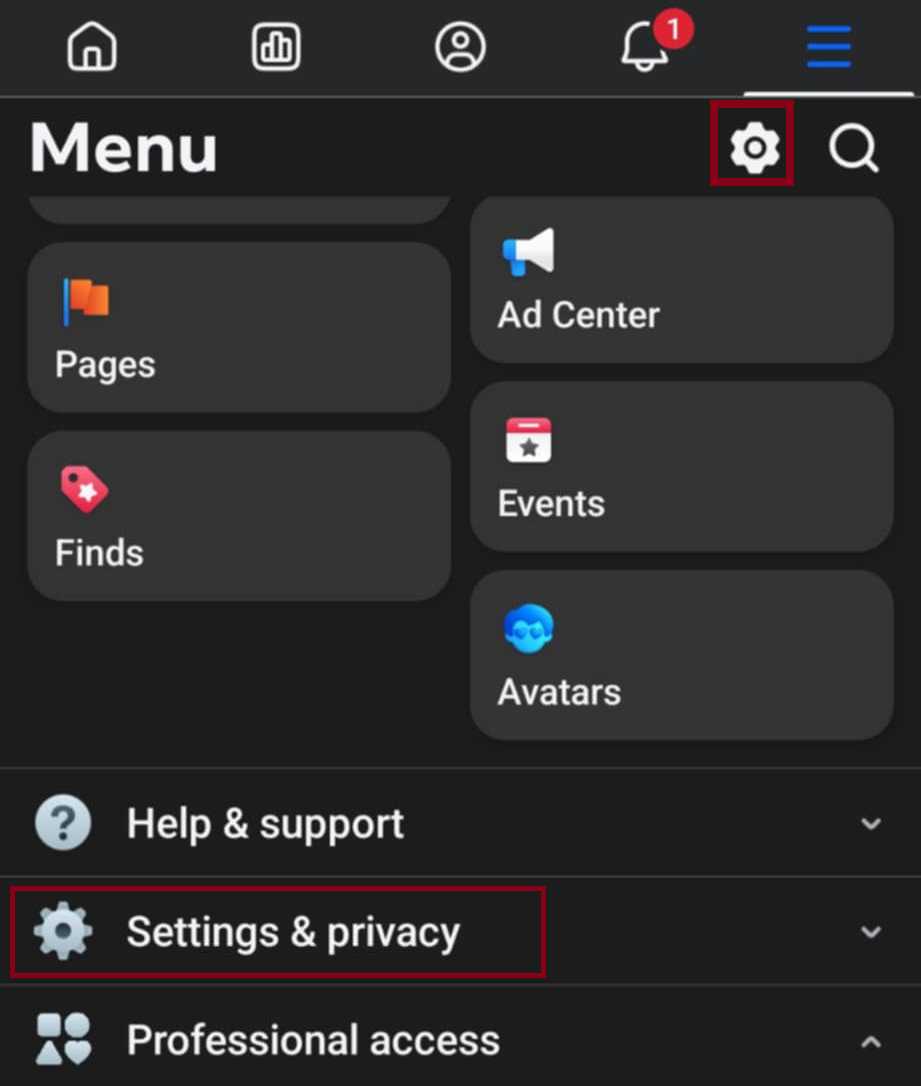
- Tap three horizontal dashes on the right to navigate to your business page.
- Scroll down to Settings & Privacy or tap on the gear wheel image.
2: Navigate to Page Setup
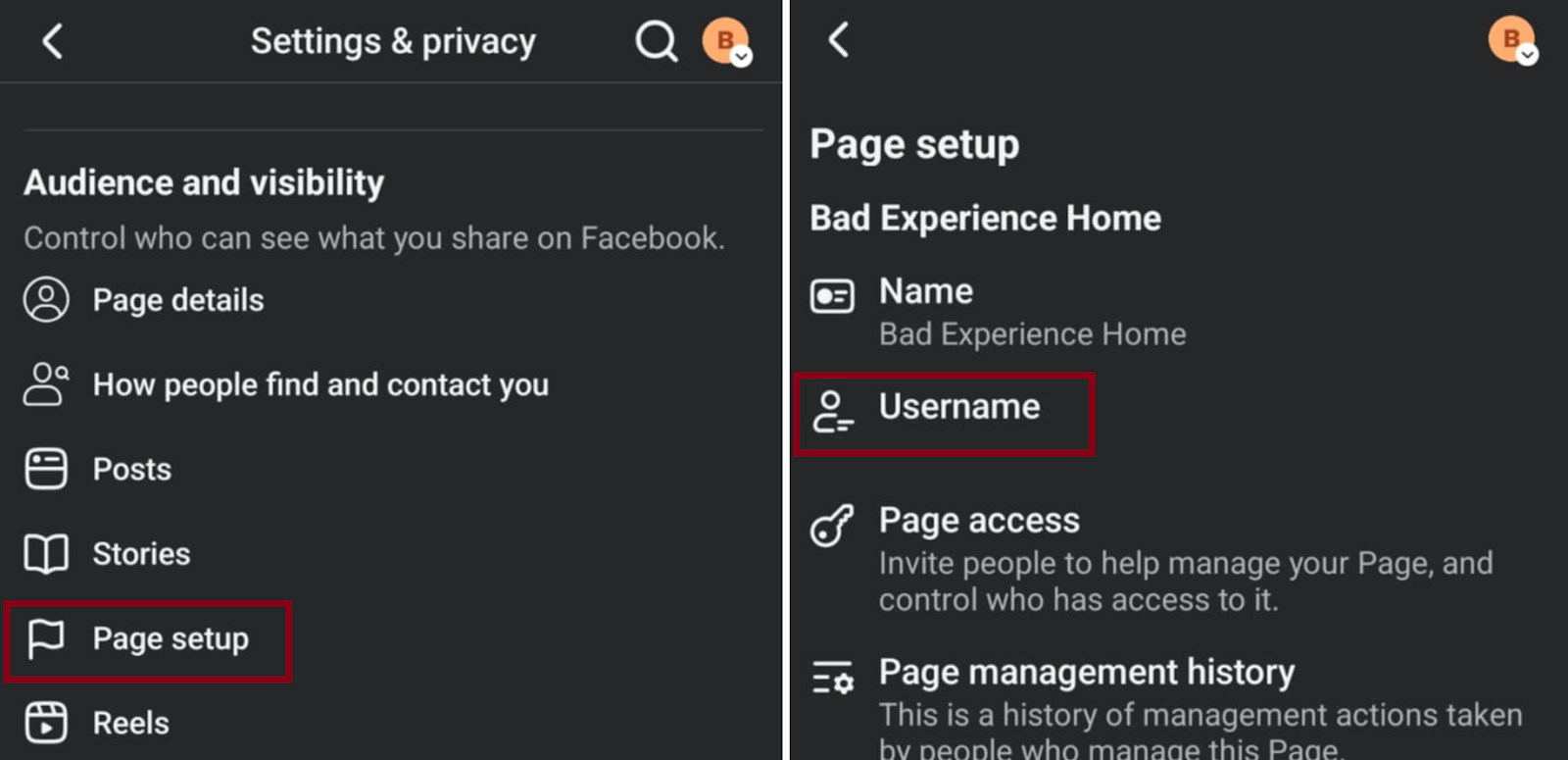
- Scroll down to tap the Page Setup under the Audience and Visibility category.
- Tap on the page’s Username field
3: Edit Your Username
- Enter your new username.
- Facebook will tell you if it’s available.
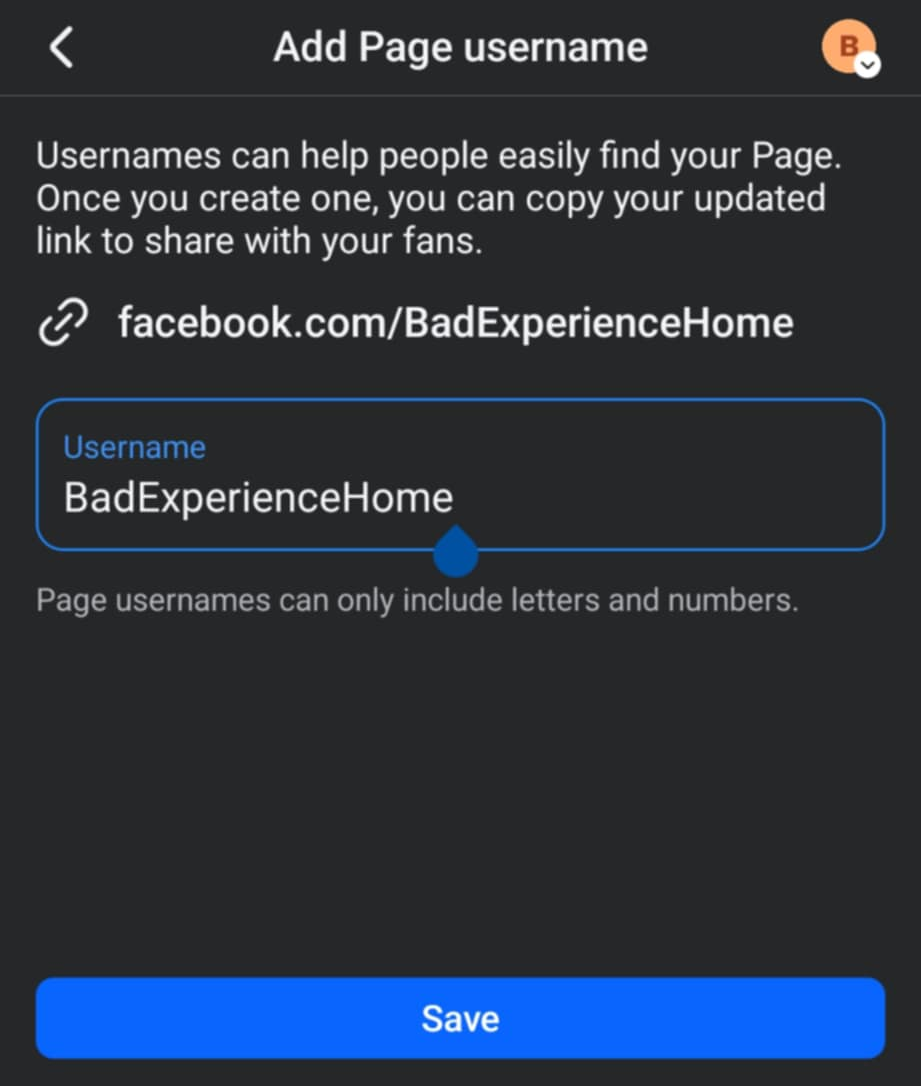
4: Confirm and Save Changes
- Confirm your changes.
- Your new Facebook Page URL is now active.
Best Practices for Choosing a Facebook Page URL
If you want a URL that works for you, keep these tips in mind:
Keep it short and memorable. Shorter names are easier to remember, type, and share. Avoid long strings of random characters.
Reflect your brand name. Your Facebook username should match your business or creator brand name as closely as possible.
Avoid special characters and spaces. Facebook doesn’t allow spaces, special characters (like @, !, #), or uppercase distinctions in pages’ usernames. Stick to letters, numbers, and periods.
Troubleshooting Common Issues
Username Already Taken
If your desired Facebook URL is unavailable, try adding your location or niche. For example, if your Brand is named Joyful Jelly, but the URL facebook.com/JoyfulJelly is already taken, you can try something like this:
- facebook.com/JoyfulJellyNYC
- facebook.com/JoyfulJellyOnline
Insufficient Page Roles or Permissions
Only admins can change the page’s username. Make sure you’re logged into the right personal account.
Recent Changes Restricting URL Updates
If you’ve recently changed your Facebook username, you may need to wait a few days before editing it again.
Frequently Asked Questions
How do I get my Facebook business page URL?
Go to your business page, and your Facebook URL appears in the browser bar. You can also find it in the General Page Settings under "Username."
Can I change my Facebook Page URL more than once?
Yes, but not frequently. Facebook may restrict repeated edits. Choose your new username carefully.
How long does it take for the new URL to become active?
Changes are instant. As soon as you save the new username, your updated Facebook URL goes live.
Will old links to my page still work after changing the URL?
No. Previous links will break. Be sure to update all links across your website, email, and social media to match your Facebook username that is currently working with your Facebook profile after you have made any changes.
Is there a difference between changing the page name and the URL?
Yes. The page name is your display title (e.g., "Bad Experience Home"), while the Facebook URL is your web address (e.g., facebook.com/BadExperienceHome). Changing the name doesn’t update the page’s username or Facebook URL, and vice versa.
The changed URL will not reflect on the Facebook Messenger app or on Facebook itself, it will only be seen in the address bar when your Facebook profile is opened.