Key takeaways:
- Instagram blocks clickable links in post captions, but you can still use the “link in bio” and link sticker on stories.
- Verified business accounts have more options like Instagram ads and shopping links.
- Always double-check your URLs and keep your Instagram profile updated for the best results.
Getting links to work on Instagram can feel like a puzzle. Instagram has strict rules about clickable links, which makes promoting stuff a bit of a challenge. But it’s not impossible.
You will find the information you need regardless of your status: businesses, influencers, and regular people alike will learn how to add a link on Instagram after reading this guide. Now, let’s see how you can do it.
Why Instagram Limits Clickable Links
Instagram’s restrictions aren’t there to annoy you. They’re meant to keep the platform safe and user-friendly. If everyone could slap clickable URLs all over their Instagram feed, it would likely turn into spam city.
Now, Instagram business profiles and verified users have a bit more freedom. They can use features like the link sticker in stories and links in their Instagram bio. But for the rest of us? We’ve got to get a little creative to put links in our Instagram profiles.
How to Add Links to Your Instagram Posts (What Works & What Doesn’t)

The thing is, you can’t just drop a clickable URL in your regular Instagram posts and expect them to work. Instagram doesn’t allow clickable links in post captions. But you can add links in other ways:
- Using the “link in bio” strategy.
- Encouraging followers to check your profile page for the Instagram link.
- Using shopping links if you have Instagram checkout set up.
Unfortunately, these strategies for Instagram posts won’t work:
- Posting raw links in your post caption. They won’t be clickable, period.
- Spamming links all over your Instagram feed.
Can You Add Clickable Links to Instagram Captions?
The short answer is no. Instagram doesn’t allow clickable URLs in post captions. You can try all you want, but you won’t be able to open the door with a spoon.
Instead, people try workarounds, like:
- Including a simple, easy-to-type URL in your Instagram post.
- Redirecting users to the link in bio.
- Mentioning a branded Instagram profile with the relevant link in bio.

How to Add a Clickable Link in Your Instagram Bio
As you’ve probably figured out already, the link in bio is the go-to option for most users. Here’s an easy way to do it:
- Open the Instagram app and head to your profile page.
- Tap “Edit Profile”.
- Under “Website”, paste your desired Instagram link.
- Hit “Save”, and you’re good to go.
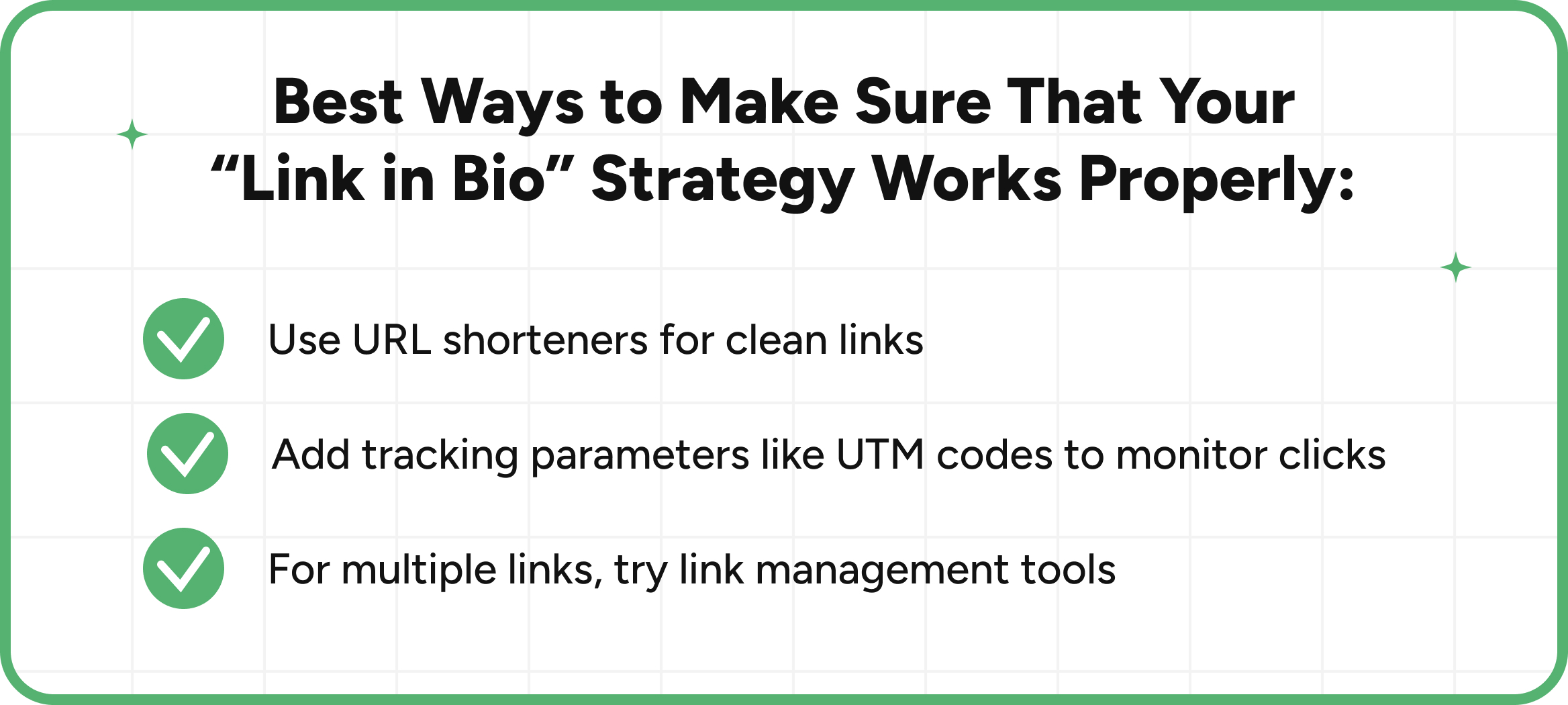
Additionally, here are some best practices you can use to make sure everything’s working properly:
- Use URL shorteners for clean links.
- Add tracking parameters like UTM codes to monitor clicks.
- For multiple links, try link management tools.
How to Add Links to Instagram Stories
Instagram stories could be a powerful traffic machine, and the link sticker made it even better. Instagram ditched the swipe-up feature, but the clickable sticker is a solid replacement.
How to Add a Link Sticker
- Create your Instagram story.
- Tap the sticker icon (the little smiley square).
- Select “Link sticker” and paste your URL.
- Customize the sticker text and place it where you want it to be.
If you want to improve engagement, you can:
- Use clear CTAs like “Tap here” or “Learn more”.
- Keep your Instagram story visually appealing to grab attention.
How to Add Links to Instagram Reels & Comments
Instagram doesn’t support active links in Instagram reels or comments. However, businesses that sell products can bypass these restrictions by connecting their e-shops to their Instagram profiles:
- Open Instagram and log in to your business account.
- Click on “Professional dashboard”, found in your profile.
- Scroll down and tap “Shops”.
- Hit “Get Started”.
- Connect your Facebook account.
- Connect to your Meta Business Manager account.
- Create your e-shop catalog.
- Enter your website address.
- Start posting products on Instagram.
If you’re not a business and you want to add links to Instagram reels or regular Instagram posts, unfortunately, you’ll have to stick to the “link in bio” strategy, since links are a no-go on regular Instagram posts.
Why Is My Link Not Clickable on Instagram?
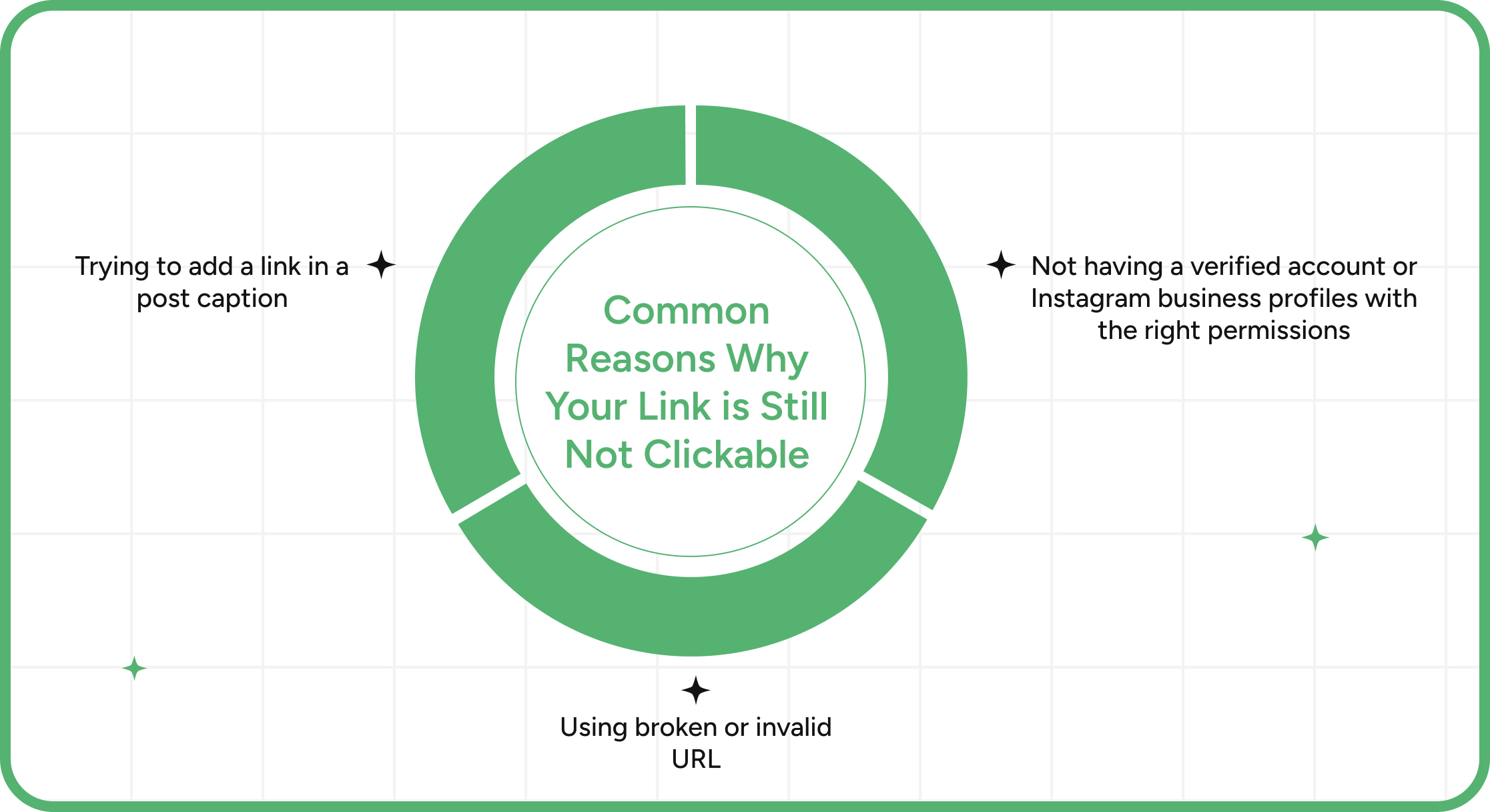
Even if you did everything right, sometimes links just don’t work. Common reasons could be:
- Trying to add a link in a post caption.
- Using broken or invalid URLs.
- Not having a verified account or Instagram business profiles with the right permissions.
The good thing is that you can fix these things:
- Double-check your URL.
- Make sure your Instagram account has the proper linking features enabled.
- If you’re using the sticker, try refreshing the Instagram app or updating it.
Conclusion
Instagram may not make adding links easy, but with the right strategies, you can make it work. Even if regular Instagram posts won’t allow sharing links, you can leverage Instagram bio, the sticker icon on your Instagram story, and Instagram checkout to drive traffic.
It’s all about using the right tools and being smart about where you place your Instagram links. Make sure you’re sharing links responsibly and don’t try to cheat the Instagram rules by using some third-party tools.
That will likely get you banned and you will no longer be able to create any Instagram posts at all.